Navy Botanical Notebook A+ Content Template
Start with the Navy Botanical Notebook design for journals & notebooks and customize it in A+ Content Designer. Replace the sample content while preserving a professionally structured layout.
- EditableIndividual design elements
- 2 ModulesSquare and banner formats
- KDPPublishing workflow
- ReusableBuild a consistent series
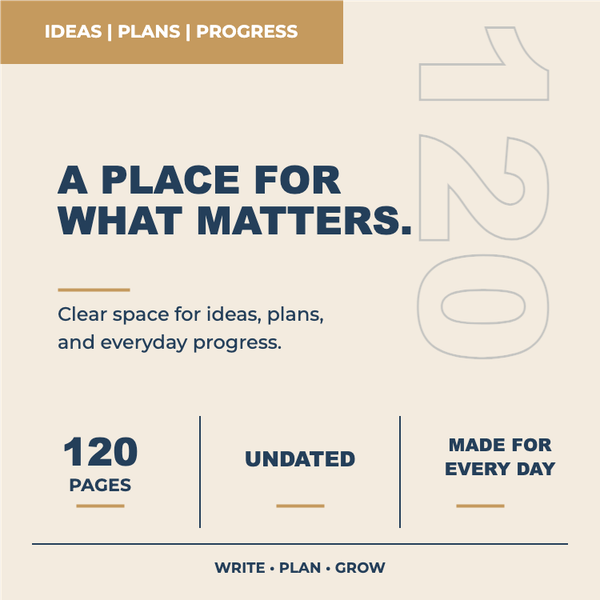
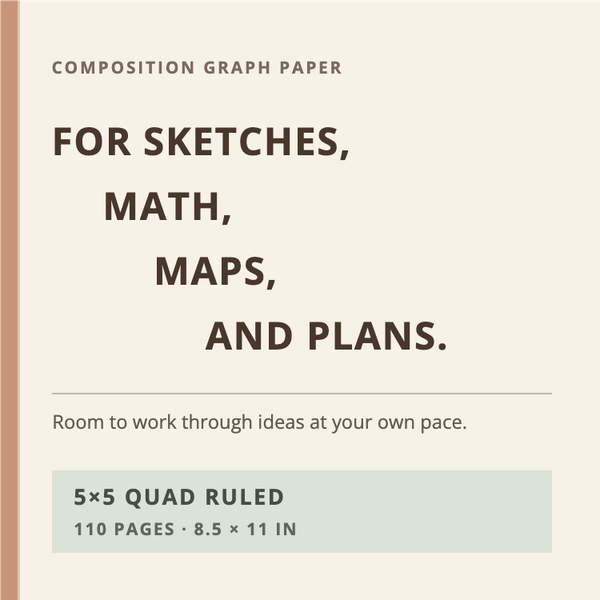
Navy Botanical Notebook preview
Use the preview to evaluate the composition and visual direction before opening the editable template.
Quick reference
| Best fit | Journals & Notebooks |
|---|---|
| Modules | Square and banner promotional layouts |
| Customize | Headlines, feature copy, colors, imagery, and product callouts |
| Before upload | Check legibility, image quality, claims, and Amazon content requirements |
What you can edit in the Navy Botanical Notebook template
Customize the modules so they communicate the specific promise, features, and visual identity of your book.
- Square-module headline, copy, colors, and product imagery
- Banner headline, supporting copy, and visual composition
- Feature callouts and benefit-led messaging
- Brand colors and typography across both modules
- Book-specific images and series styling
Who Navy Botanical Notebook is for
- Authors creating a journals & notebooks book who want an editable visual starting point.
- Publishers who need a structured layout they can customize with book-specific copy and imagery.
- Authors building a consistent visual direction for a title or related series.
How to customize Navy Botanical Notebook
- 1
Open the A+ designer
Create an A+ project and locate this template in the template browser.
- 2
Plan the content story
Decide what each module should explain: the reader benefit, interior experience, key features, or series connection.
- 3
Replace sample copy and imagery
Use concise, accurate claims and book-specific visuals while maintaining clear spacing and hierarchy.
- 4
Export and review
Check both assets at desktop and mobile sizes before uploading them to Amazon.
Best uses for Navy Botanical Notebook
- Present the benefits and visual identity of a journals & notebooks title on its Amazon detail page.
- Create coordinated square and banner assets that support the product description.
- Build a reusable visual system for a related series without repeating generic copy.
Customize Navy Botanical Notebook now
Use this template in A+ Content DesignerCommon mistakes to avoid
Repeating the cover
A+ content should add benefits, context, comparisons, or visual explanations rather than duplicate the book cover.
Adding too much text
Dense paragraphs become difficult to scan. Use short, specific copy with a clear hierarchy.
Making unsupported claims
Avoid unverifiable awards, rankings, guarantees, pricing, reviews, or promotional language that can cause rejection.
Edge cases and final checks
Mobile viewing
Detailed text and small labels may fail on phones. Test the exported modules at a reduced display size.
Translated listings
Longer translations can break the visual hierarchy. Refit copy instead of shrinking all text.
Series consistency
Keep a recognizable system across books while changing enough imagery and copy to describe each title accurately.
Template vs. starting from scratch
| What matters | Doing it manually | With this tool |
|---|---|---|
| Starting point | Blank canvas and no visual hierarchy | A complete, genre-aware composition |
| Editing | Build every element and relationship yourself | Replace and adjust editable elements |
| Consistency | Easy for spacing and styles to drift | A coordinated visual system to customize |
| Production time | More setup and experimentation | Start with the layout already established |
Frequently asked questions
Can I change the text and colors in Navy Botanical Notebook?
Yes. The template is intended as an editable starting point, so you can replace the sample text, colors, imagery, and styling in A+ Content Designer.
Can I use the template for more than one book?
You can reuse the workflow, but each finished design should accurately represent its specific book and should be customized enough to avoid a repetitive catalog.
Does Amazon automatically approve every A+ design?
Approval is controlled by Amazon. Use accurate content, readable text, appropriate imagery, and current Amazon content requirements before submission.
Where do I edit this A+ content template?
Open A+ Content Designer, create a project, and select Navy Botanical Notebook from the template browser.
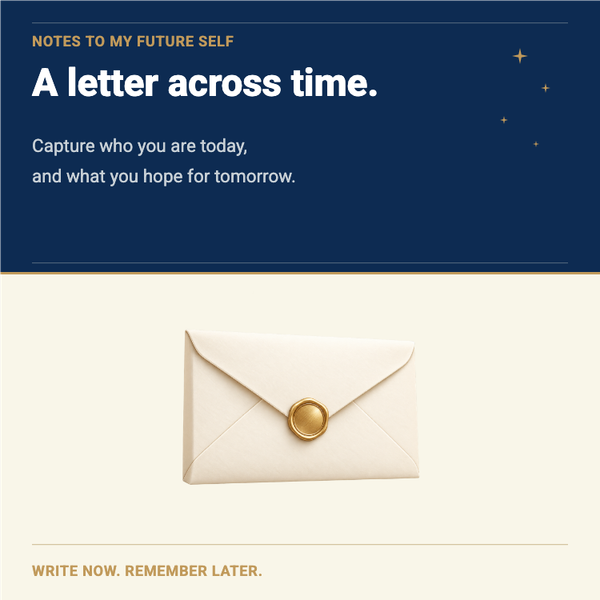
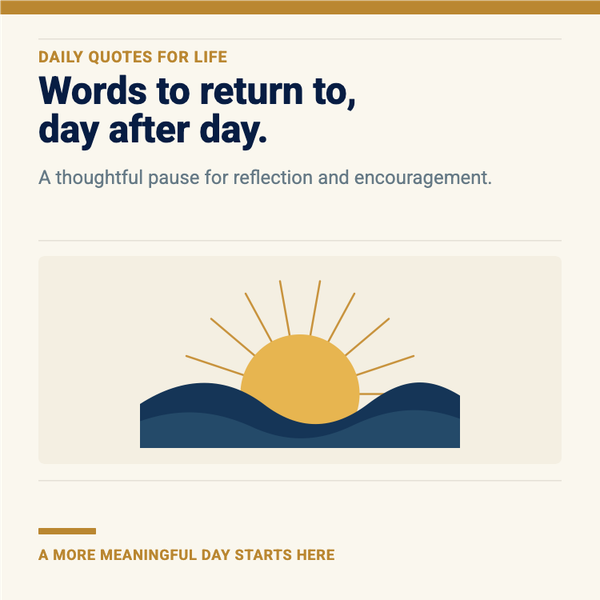
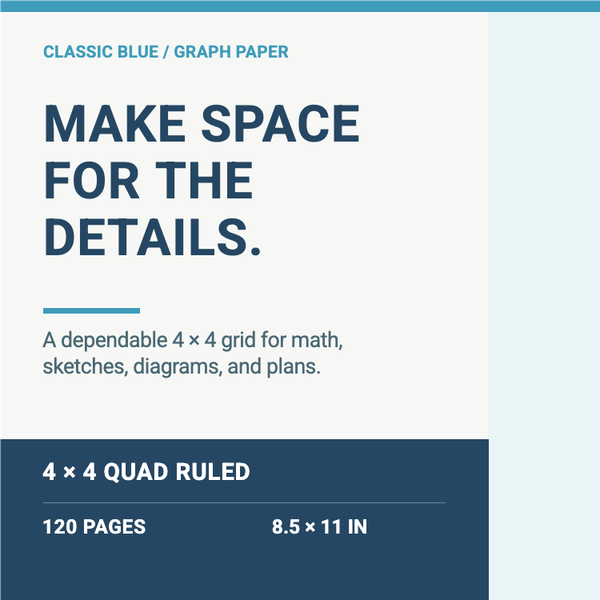
More Journals & Notebooks templates
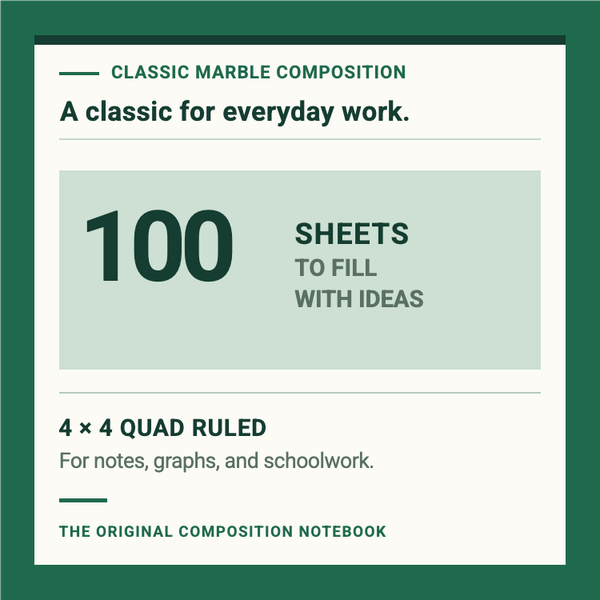
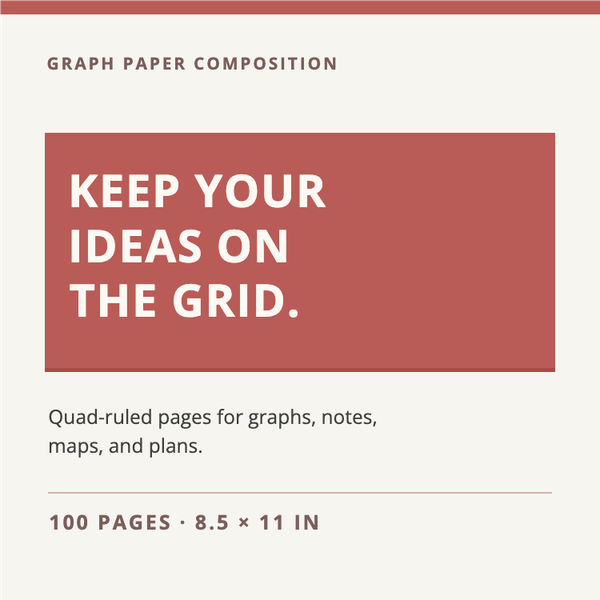
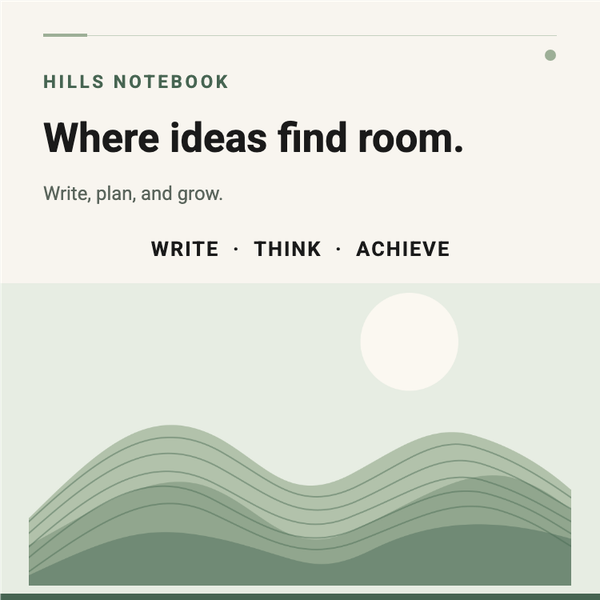
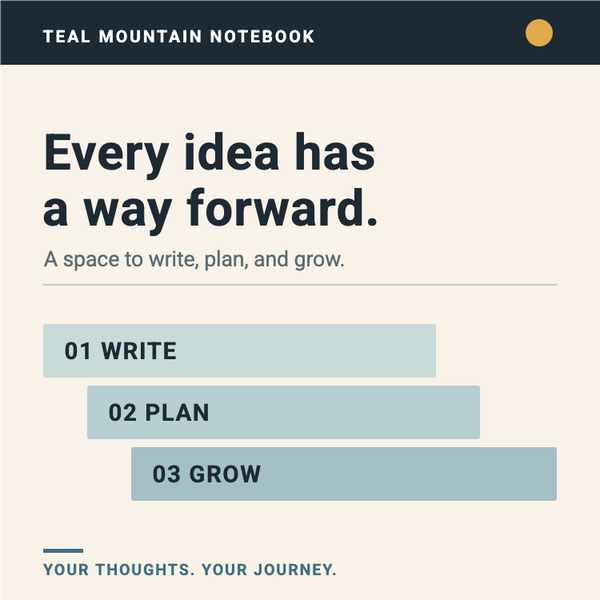
Compare related visual directions before choosing your starting point.
Related tools and resources
Resources & guidance
Want more practical KDP help?
Browse our free publishing resources, checklists, and tool guides before you start your next book.
Explore free resourcesMake Navy Botanical Notebook your own
Open the editable template in A+ Content Designer, replace the sample content, and prepare a polished asset for your book.
Use this template in A+ Content DesignerNo design experience required · Print-ready PDF export